Delete Annotations, Notes and Markup from a PDF
You've removed every sticky note from a contract PDF, saved the file, and sent it to a client. The pages look clean, but that doesn't always mean the review information is gone. Comments, highlights, author names, timestamps, reply threads, document properties, and hidden revisio
Delete Annotations, Notes and Markup from a PDF
You've removed every sticky note from a contract PDF, saved the file, and sent it to a client. The pages look clean, but that doesn't always mean the review information is gone. Comments, highlights, author names, timestamps, reply threads, document properties, and hidden revisio
You've removed every sticky note from a contract PDF, saved the file, and sent it to a client. The pages look clean, but that doesn't always mean the review information is gone. Comments, highlights, author names, timestamps, reply threads, document properties, and hidden revision traces can remain in the file even after visible markup disappears.
The right way to remove comments from PDF files depends on what you need next. A working draft should preserve its review history, while a filing, client deliverable, or blind-review document may need a sanitized copy with annotations and metadata removed. This guide covers both workflows, including desktop editors, browser tools, batch processing, redaction, permissions, and final verification. For names, numbers or other sensitive details, use PDF redact to remove them permanently.
Table of Contents
- Why Comment Removal Is More Than Hitting Delete
- Removing Comments in Popular PDF Editors
- Batch Workflows for Cleaning Multiple PDFs
- Preserve Original or Produce a Clean Copy
- Permissions, Metadata, and Compliance Considerations
- Quick Checklist for Clean, Share-Ready PDFs
Why Comment Removal Is More Than Hitting Delete
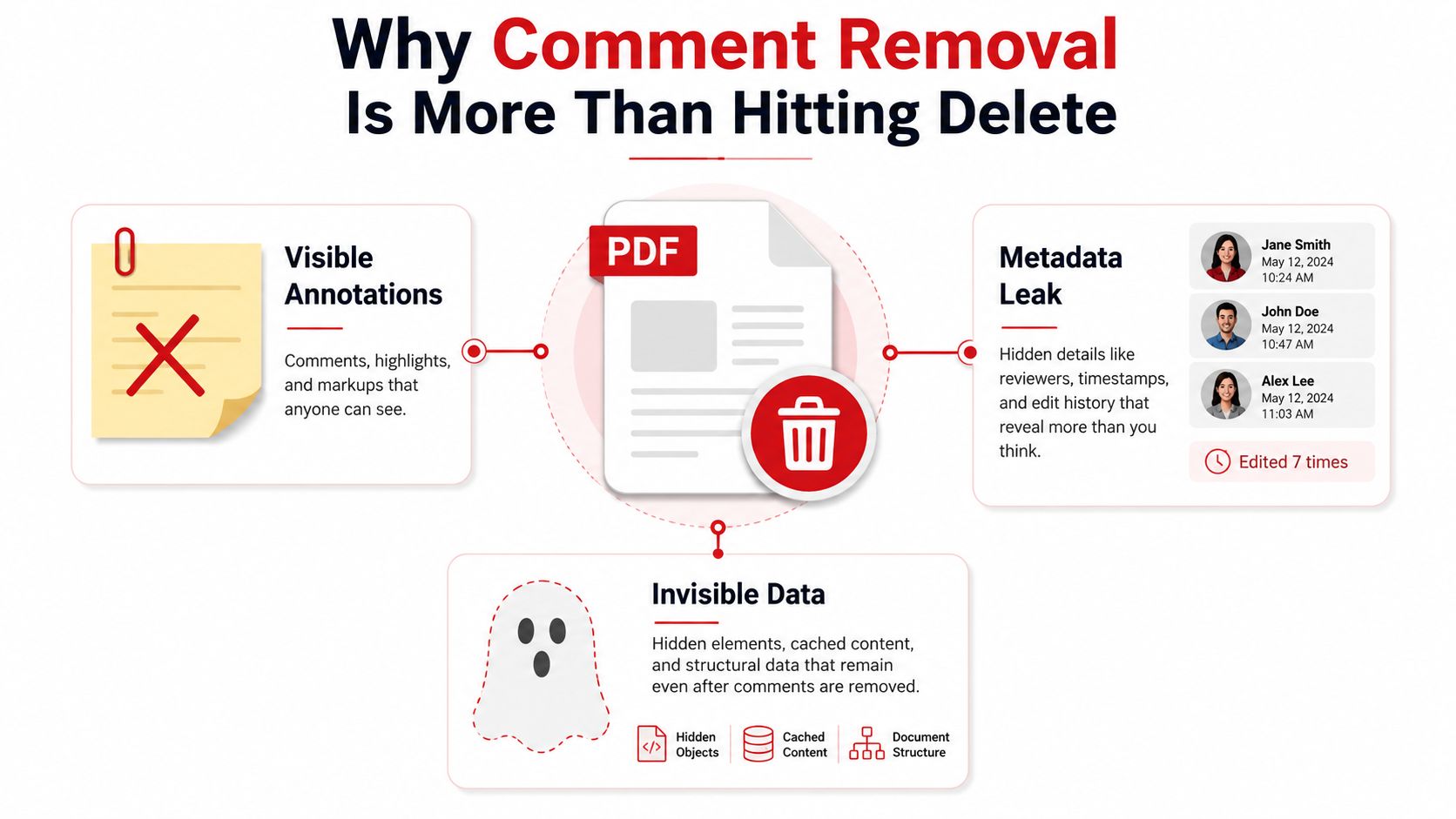
A paralegal cleaning a contract draft usually starts with the visible problem. Sticky notes cover the margins, highlights interrupt clauses, and text boxes identify unresolved changes. Selecting each item and pressing Delete makes the pages look ready for outside counsel, but the PDF may still contain review information that isn't visible during ordinary reading. When a few pages are not needed, delete pages from PDF so the document stays short and focused.
PDF annotations belong to the document's interactive structure. That structure can hold visible objects such as notes, highlights, stamps, drawings, and callouts, along with information associated with the review process. Adobe's guidance treats comments and metadata as separate categories of hidden information that may need removal during sanitization, so deleting on-page markup shouldn't be treated as a complete privacy check. See the workflow distinction in this guide to add notes to a PDF before deciding what must remain in the source.
Delete, flatten, and clean copy are different outputs
Deleting annotations removes comment objects from the working file. That's appropriate when reviewers have finished and you want to continue editing, but it also changes the file that may contain your collaboration record. To lock form fields and annotations into the page, flatten PDF as a final step.
Flattening converts interactive markup into fixed page content. The comments may remain visibly burned into the page, which makes flattening useful for preserving an approved visual markup set, but it isn't a method for removing sensitive notes.
Producing a clean copy creates a separate deliverable without the review layer. Printing with comments and markups disabled can re-render the pages without annotations, while a dedicated sanitization or redaction workflow can address hidden information more deliberately.
Practical rule: Keep the annotated source untouched, then create a separate clean output for external sharing.
The PDF format's annotation model has a long history. PDF 1.3, standardized broadly in 2000, added annotation types and document-interaction features, while PDF 1.7 introduced redaction annotations in 2006. PDF 2.0 followed in 2020, continuing the standardization of document behavior across vendors and markets, as summarized by the PDF format reference. Redaction matters because it was designed to permanently remove content after marks are reviewed and applied, rather than merely placing a black shape over it.
Removing Comments in Popular PDF Editors
The fastest method depends on the application that created or opened the PDF. Use a desktop editor for controlled, offline work, Preview for a lightly marked non-sensitive file, and a browser-based service only when the document can safely leave your device.
Adobe Acrobat Pro
- Open the PDF and select the Comment pane.
- Right-click a comment and choose Delete.
- For bulk removal, open the gear menu in the Comments list header and choose Delete All Comments in This File.
- Save to a new filename rather than overwriting the source.
- If the file contains mixed markup, check the annotation controls for Delete All Markup so text edits, stamps, and related objects aren't overlooked.
Adobe community guidance also describes selecting the last comment in the list, holding Shift, selecting the first comment, and deleting the highlighted group. Acrobat Pro's PDF Optimizer offers another route, but selecting Discard User Data can remove more than comments, including form and multimedia content, so review the options before confirming. The PDF editing guide is useful when comment cleanup is part of a larger document revision.
macOS Preview
Preview handles individual annotations well:
- Open the PDF.
- Select the toolbox icon to enter Markup view.
- Click an annotation.
- Press Delete.
- Export or save a new PDF.
Preview isn't ideal for heavily marked documents because it doesn't provide a comparable one-pass bulk deletion command. For a short file with a few notes, it's convenient. For legal, privileged, or confidential material, use an offline editor and retain the original separately.
Browser-based tools
Browser editors such as Smallpdf, iLovePDF, and PDFgear generally follow the same pattern. Upload the document, choose an annotation-removal or clean-PDF function, then download the result. The trade-off is straightforward: the workflow is convenient, but the file is uploaded to a third-party service. Don't use that route for privileged or regulated content unless your organization has approved the service and its handling terms.
| Comment Removal Methods Compared | Bulk Delete Support | Preserves Original |
|---|---|---|
| Adobe Acrobat Pro | Yes, through comment and markup controls | Only if you save a separate copy |
| macOS Preview | Limited, mainly individual selection | Yes, when exported separately |
| Browser-based editor | Depends on the tool | Usually, because a new file is downloaded |
| Command-line workflow | Yes, when scripted or page-scoped | Yes, when output is directed to a separate folder |
Deleting annotations isn't the same as hiding them. If comments remain visible after saving, reopen the output in another PDF viewer and inspect the comments pane rather than trusting the page appearance alone.
Batch Workflows for Cleaning Multiple PDFs
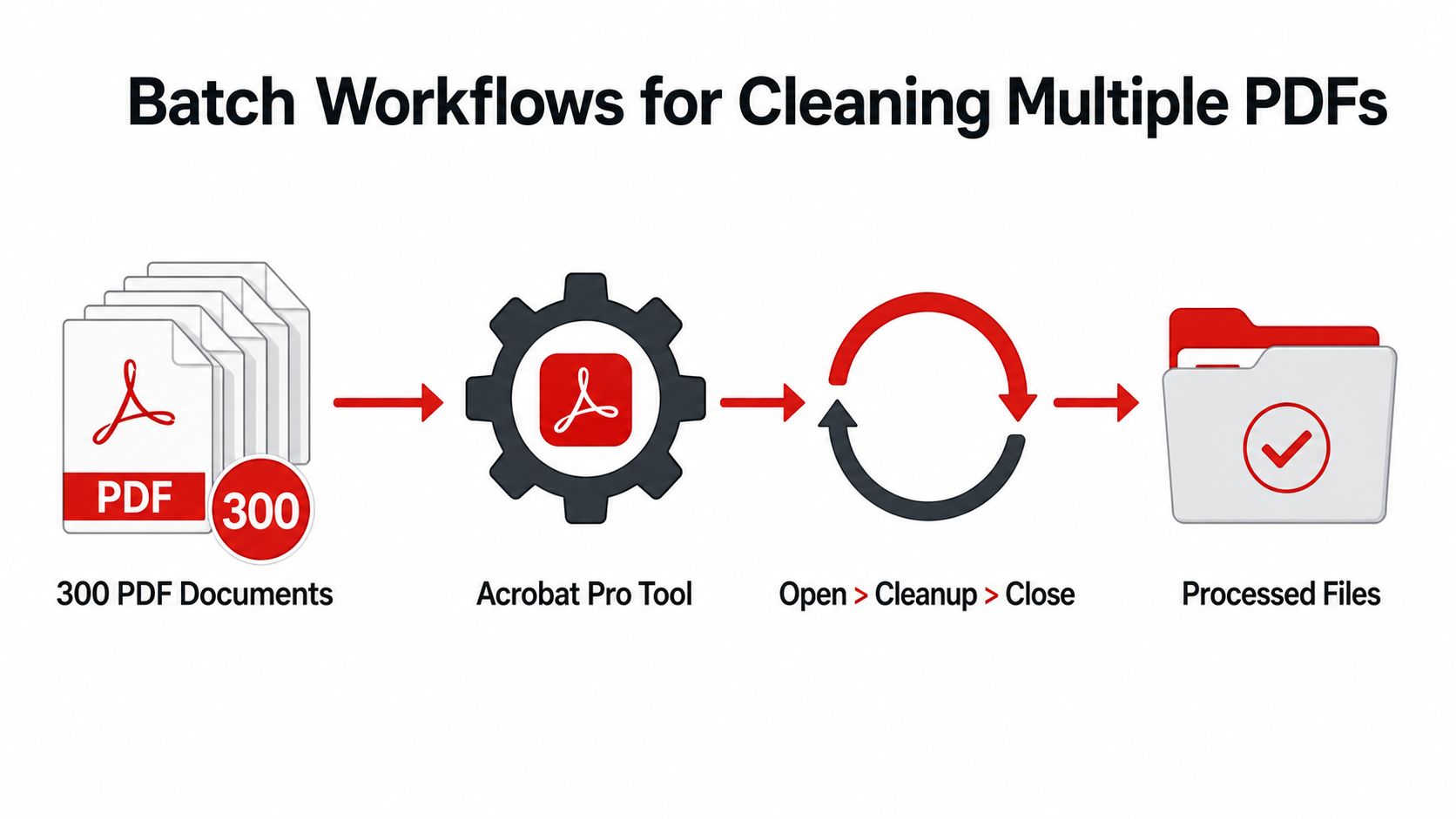
A single PDF can be cleaned manually. A folder of documents needs a controlled process that separates source files, outputs, logs, and exceptions. The goal isn't merely speed. It's repeatability, predictable naming, and a clear record of what changed.
Acrobat-based processing
For teams already working in Acrobat Pro, start with a representative copy. Run Delete All Comments, save the result to an output location, close the file, and confirm that the source remains unchanged. Then use Tools > Action Wizard to create an action that applies the cleanup step and saves each processed document into a dedicated output folder.
Acrobat's PDF Optimizer can be included where optimization is already part of the publishing process. Place comment removal before the optimization stage, then inspect the optimizer settings carefully. A broad discard option may remove forms, multimedia, or other user data that the team still needs.
Command-line and folder automation
Automation-heavy teams can strip annotation entries from PDF structures and rebuild the files. Community examples describe removing /Annots entries with tools such as pdftk and text filtering, while other command-line references use a page-scoped -remove-annotations operation. Page-scoped removal is useful when only selected pages need cleanup, but it shouldn't be confused with document-wide sanitization.
The technical caveat is important. Removing /Annots alone can leave appearance or structure inconsistencies if the PDF isn't rebuilt properly. Validate page rendering, compare the cleaned output against the source, and open the result in more than one viewer when the document matters.
On macOS, Automator can run an AppleScript or shell command across a folder using tools such as qpdf or mutool. On Windows, PowerShell can loop through files and call a PDF library or PDFtk. Third-party applications, including Foxit PDF Editor's Batch Process and PDFsam's visual editor module, provide folder-level workflows without requiring a custom script.
A safe batch layout looks like this:
- Source folder: Read-only originals with their existing filenames.
- Output folder: Cleaned copies generated by the process.
- Exception folder: Password-protected, damaged, or visually inconsistent files.
- Processing log: Filename, action applied, completion status, and manual review result.
Use predictable names such as matter-document-clean.pdf, but preserve enough of the source name to identify the relationship. The PDF workflow automation guide covers the broader principle: automate repeatable transformations, then keep human verification for exceptions.
Preserve Original or Produce a Clean Copy
The safest document workflow starts with a decision, not a delete key. If reviewers may need to continue commenting, preserve the annotated source. If the document is leaving the organization, create a clean copy and test that output independently.
Preserve the source for collaboration
Keep the original when it serves as the working record, contains unresolved discussion, or may be needed for audit and version comparison. Make a duplicate before removing annotations, and use a filename that makes the status obvious. A folder structure such as 01-source, 02-review, and 03-deliverables reduces the chance that someone will overwrite the master file.
Deleting comments from a duplicate is usually preferable to deleting them from the only copy. The clean file can then be circulated while the annotated version remains available to the authorized team.
Create a clean deliverable for sharing
For a quick visual cleanup, open the print dialog and disable Print comments and markups, then print or export to a new PDF. Preview-based guidance documents this approach alongside selecting comments from the markup list and exporting a new file. Re-rendering can remove visible annotations, but it may also affect interactive elements such as forms, links, accessibility structure, bookmarks, or selectable text. Inspect the output before delivery.
A controlled Save As or export creates explicit versioning without changing the source. Use a separate filename and folder, then compare page counts, numbering, form behavior, and visual layout.
Redaction is different again. If comments reveal reviewer identities, confidential strategy, or sensitive text that appears in the page content, use a redaction workflow rather than a simple annotation delete. PDF redaction requires marking areas first and applying those marks afterward, which permanently removes the underlying information when performed correctly, as described in the PDF annotation redaction explanation.
| Preserve Original vs Clean Copy: When to Use Each | Recommended Workflow | Key Trade-off |
|---|---|---|
| Ongoing internal review | Keep the annotated source and work from a duplicate | Review history remains available, but the file still contains sensitive discussion |
| External client delivery | Export a separate clean PDF and verify it | Cleaner sharing, with possible loss of interactive features |
| Visible markup must remain fixed | Flatten a copy | Markup becomes part of page content and is no longer independently editable |
| Sensitive content must disappear | Mark and apply redactions, then sanitize | Stronger removal process, but irreversible on the output |
| Long-term archive | Preserve the source and create a documented clean derivative | Requires disciplined naming and version control |
Flattening can be useful when the visual result must remain fixed, but it isn't a substitute for removing comments or sanitizing metadata. The PDF flattening guide explains why flattening changes editability rather than deleting review objects.
Permissions, Metadata, and Compliance Considerations
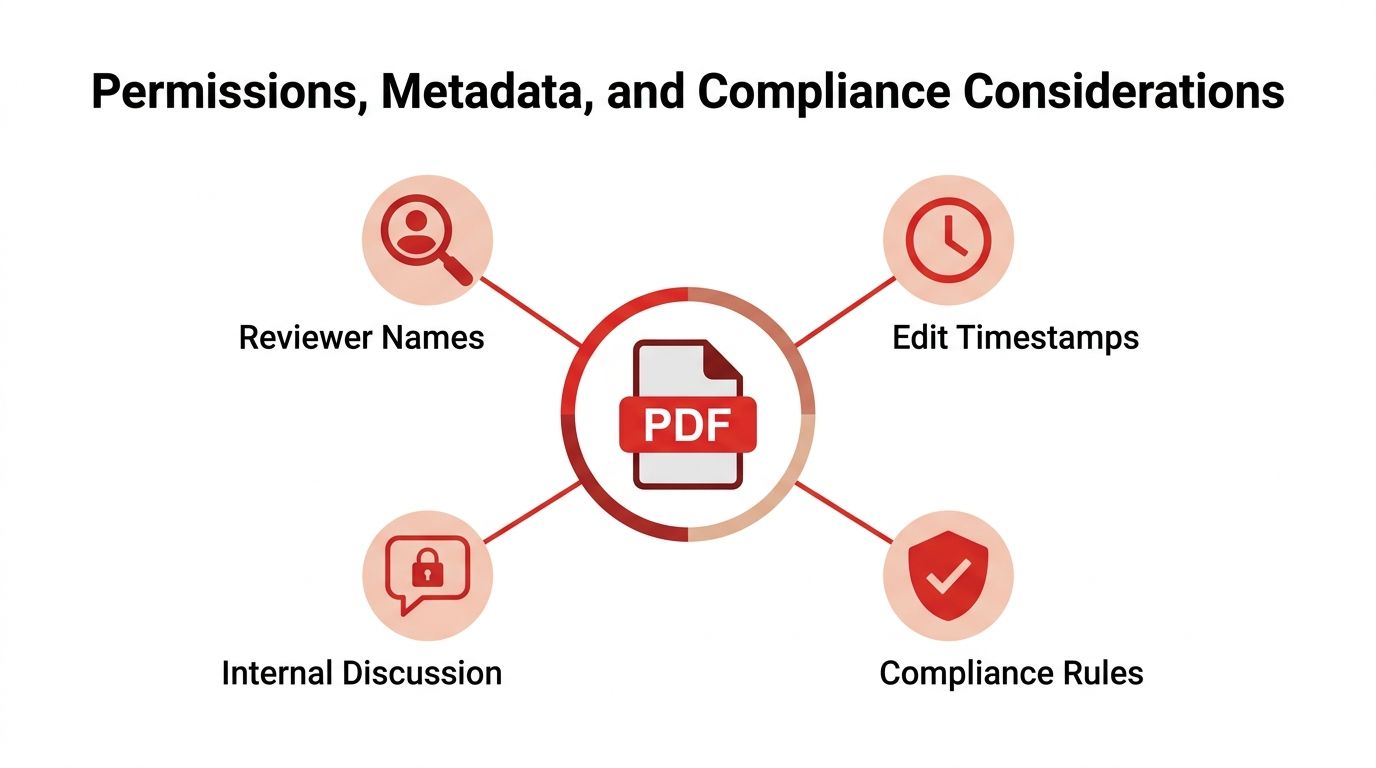
A PDF can look clean while still exposing information that matters. Reviewer names, edit timestamps, internal discussion, document authorship, producer details, and revision traces may survive after visible comments are deleted. Common locations include document properties such as Author and Subject, as well as XMP metadata streams.
That distinction becomes critical for legal filings, FOIA responses, confidential client deliverables, and blind-review submissions. The appropriate question isn't only, “Can another reader see a comment?” It's also, “Could the file disclose who reviewed it, when they worked on it, or what they discussed?”
Sanitization is separate from annotation deletion
After removing comments, inspect the document's hidden-information or sanitization controls. Adobe's sanitize guidance identifies comments and metadata as removable hidden information, which is why a compliance workflow often includes both steps:
- Annotation cleanup: Remove sticky notes, highlights, text boxes, stamps, drawings, and reply objects.
- Metadata review: Inspect author, subject, producer, creation details, and XMP streams.
- Content inspection: Search for confidential text that was never an annotation.
- Output validation: Reopen the cleaned file and test whether the removed material remains accessible.
A clean page is a visual result. A sanitized PDF is a controlled information result.
Permissions can block the entire process. If Remove Comments is greyed out, check whether the PDF has editing restrictions or requires a password. Request the owner's permission or obtain an authorized decrypted working copy. Don't bypass security controls on a document you aren't authorized to modify.
A scanned PDF creates another problem. What appears to be a comment may be part of the scanned image rather than an annotation object. In that case, deleting annotations won't change the page image. OCR, image editing, or a properly authorized redaction process may be necessary, followed by visual inspection.
For privacy-sensitive work, an online PDF toolkit can be considered only after its processing model is approved. PDFWix provides browser-based PDF tools, with most processing running in the browser and its protection and file-access operations handled in server memory without writing files to disk. Treat that as a tool characteristic to evaluate, not as a replacement for your organization's own data-handling policy.
Quick Checklist for Clean, Share-Ready PDFs
Use this checklist before sending a PDF outside the review group:
- Identify the output purpose. Decide whether the file is a continuing working draft, a fixed visual copy, or a confidential final deliverable.
- Protect the source. Copy the original into a source folder before deleting annotations, flattening, printing, or exporting.
- Remove actual annotation objects. In Acrobat, use the Comments controls or Delete All Comments in This File. In Preview, select annotations from Markup view and delete them. Browser tools suit only documents approved for upload.
- Check for non-comment markup. Look for highlights, stamps, drawings, text edits, attachments, and margin callouts that may not appear under a narrow comments filter.
- Sanitize hidden information. Review metadata and hidden-content controls when the document contains privileged, personal, confidential, or blind-review information.
- Handle sensitive page content separately. Use applied redactions for information that must be permanently removed from the document body. A black rectangle or flattened image isn't proof that the underlying text is gone.
- Reopen the output. Confirm that sticky notes, highlights, margin comments, and reply threads no longer appear. Check page count, page numbering, links, bookmarks, forms, text selection, and visual layout.
- Test an exception. If comments reappear after saving, reopen the file in the editor that created them and export again. If flattened pages lose form fields, return to the unflattened source and create a different derivative. If permissions block removal, obtain authorized access rather than forcing the operation.
- Record the result. For batch work, log the input filename, output filename, cleanup action, and any file requiring manual review.
A practical decision rule is simple: preserve the original for collaboration, produce a separate clean copy for sharing, and sanitize or redact whenever hidden information or sensitive content could create risk.
PDFWix provides browser-based tools for editing, optimizing, securing, converting, and redacting PDFs, which can support a clean-copy workflow without installing desktop software. Visit PDFWix to inspect the available PDF tools and choose the workflow that fits your document's privacy and review requirements.