Change PDF Page Dimensions Without Distorting Content
You're usually here for one of three reasons. A PDF won't email because the attachment cap rejects it, an upload portal keeps timing out, or a print shop is kicking the file back because the page dimensions are wrong. People call all of that “reduce page size PDF,” but those are
Change PDF Page Dimensions Without Distorting Content
You're usually here for one of three reasons. A PDF won't email because the attachment cap rejects it, an upload portal keeps timing out, or a print shop is kicking the file back because the page dimensions are wrong. People call all of that “reduce page size PDF,” but those are
You're usually here for one of three reasons. A PDF won't email because the attachment cap rejects it, an upload portal keeps timing out, or a print shop is kicking the file back because the page dimensions are wrong. People call all of that “reduce page size PDF,” but those are two different jobs.
One job is reducing file size so the PDF takes up fewer bytes. The other is changing page dimensions so the pages physically fit Letter, A4, or another required format. If you pull the wrong lever, you waste time and often make the file worse.
The fastest way to fix it is to diagnose first. Ask three questions before opening any tool: is the PDF too big to send, too slow to open, or rejected because the page dimensions are off? Once you know which problem you have, the right workflow becomes obvious.
Table of Contents
- Why Your PDF Is Too Large in the First Place
- What Actually Drives PDF File Weight
- Compressing a PDF with PDFWix Step by Step
- Downsampling Images and Choosing the Right DPI
- Cropping Pages and Changing Page Dimensions
- Alternative Tools and When to Use Each One
- Troubleshooting When the File Stays the Same or Grows
Why Your PDF Is Too Large in the First Place
Most oversized PDFs aren't “broken.” They're carrying more data than the job requires. A contract scan that only needs screen review often still contains high-resolution page images. A presentation exported from design software may keep oversized canvases, transparency layers, and embedded assets that nobody needs after export.
That's why reducing PDF page size shouldn't start with a random compression button. It should start with triage. If you skip that step, you can end up shrinking image quality when the problem is page geometry, or cropping pages when the issue is a stack of heavy scans. To trim margins or white space, crop PDF before exporting.
Run this three-question triage first
Too big to send?
You need file compression, object cleanup, or a split workflow.Too slow to open?
You're usually dealing with image-heavy pages, transparency, or bloated internal objects.Rejected by a system or printer?
Check the actual page dimensions first. Some systems reject page width, height, or trim settings, not file weight.
Practical rule: If the pages look physically too large, compression won't solve the root problem.
A lot of confusion starts because search results mix up file-size reduction with page resizing. Adobe's own documentation separates print scaling from file-size reduction, which is exactly how practitioners handle it in actual work. If you need a clearer breakdown of why PDFs get unwieldy before you start editing, this guide on why PDF files get so big is worth reading.
Two meanings of reduce page size PDF
Here's the clean distinction:
| What you mean | What changes | Typical use case |
|---|---|---|
| Reduce file size | Megabytes or kilobytes | Email, uploads, storage |
| Reduce page dimensions | Width and height of pages | A4 to Letter, trimming margins, print prep |
Once you split those apart, the workflow gets simpler. Heavy content inside normal pages calls for compression. Oversized canvases, scanner borders, and bad export dimensions call for cropping or resizing.
What Actually Drives PDF File Weight
Two PDFs can both be called "too big" and need completely different fixes. One is a 40 MB scan packet on normal Letter pages. The other is a 2 MB file built on oversized pages that a court portal or print shop rejects. This section is about the first case: file weight inside the PDF. If the page width or height is wrong, cropping or resizing is the right path instead.
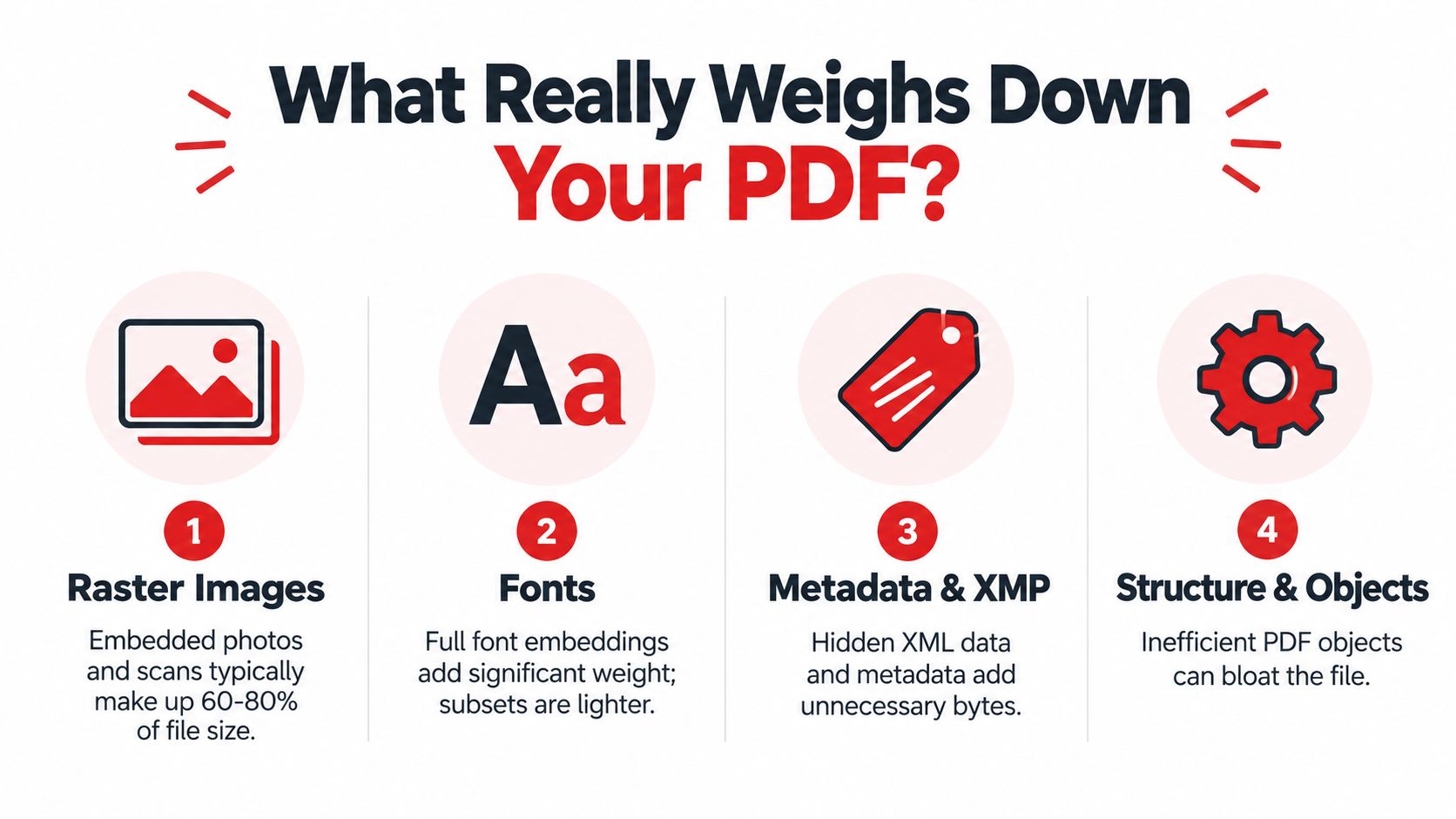
The fastest way to stop guessing is to identify what the PDF is made of. In office, legal, and compliance files, weight usually comes from one of four places: image data, fonts, hidden document baggage, or design-layer complexity. A quick look at the dominant object type saves time and prevents the usual mistake of running "compress" on a file whose real problem is page dimensions.
The four places weight usually hides
Raster images are still the main offender. Scans, phone photos, screenshots, and slide exports get embedded as image objects, and those objects can outweigh everything else in the file combined. Adobe's PDF settings overview explains the practical split: JPEG and JPEG2000 suit continuous-tone images, while ZIP is better for flat-color graphics and line art (Adobe PDF settings overview). In practice, scans and screenshots are where compression settings move the needle.
Fonts matter more in text-heavy or design-heavy PDFs than people expect. Full embedding preserves exact appearance across systems, which is useful for court filings, branded reports, and archived records. It also adds weight. If subsetting is available, the PDF stores only the glyphs used on the page, which often trims size without changing the look.
Metadata and hidden objects add clutter rather than bulk, but clutter still counts. Old comments, form remnants, bookmarks, scripts, XMP metadata, and revision leftovers can survive multiple export rounds. Cleaning them out will not rescue a scan packet, but it can cut waste from documents that have passed through Word, Acrobat, e-sign tools, and records systems.
Transparency and layered content show up mostly in exported design files, maps, and presentation decks. A short report with only a few pages can stay oddly heavy because it contains layered artwork, redundant vector objects, or flattened transparency data. Generic compression presets often do little here. An optimizer that can target structural content works better.
A quick diagnostic that saves time
Open the PDF in a tool that shows optimization categories or object details. Then check the biggest class first.
- Image XObjects dominate. Use downsampling, image recompression, and color-space cleanup.
- Fonts are unusually large. Check whether the file embeds full fonts and whether subsetting is available.
- Metadata, forms, or scripts stand out. Run cleanup and remove objects you no longer need.
- Transparency, layers, or vectors dominate. Use optimizer settings aimed at structural complexity, not just image compression.
That diagnostic also keeps the two "reduce page size" problems separate. If object weight is high, use compression. If the canvas itself is oversized, change page dimensions. Different problem, different tool.
For a clearer breakdown of how leaner exports are built, this guide to what an optimized PDF is explains the mechanics and why some files shrink easily while others barely change.
Compressing a PDF with PDFWix Step by Step
A legal assistant gets a 48 MB closing binder back from signatures at 4:45 p.m. The file is too large for the client portal, but nobody wants blurry exhibits or broken OCR. That is the right moment to separate two jobs: shrink the file itself, or change the page dimensions. PDFWix handles the first job. If the pages are physically oversized, compression will not fix that.
For browser-based work, the routine is simple. Upload the file, choose a preset, run one pass, and inspect the result before sending it out. Real savings depend on what is inside the PDF. Scan-heavy files often shrink a lot. Clean, already-optimized PDFs may barely move.
The settings that actually matter
On the PDF file compressor, pay attention to controls that change image data or remove extra objects.
- Compression profile: Start with a medium preset. Aggressive presets are useful for scan bundles, but they can damage screenshots, stamps, and small text.
- JPEG quality: This directly affects photos, scanned pages, and image-based exhibits.
- Target DPI: Often the biggest size lever in image-heavy documents.
- Cleanup options: Metadata, form remnants, and other unused elements can be removed if they no longer serve a purpose.
Some controls are mostly cosmetic. If a tool hides image resolution, compression method, and cleanup behavior behind a vague "maximum reduction" label, you cannot predict the trade-off.
A practical workflow
Use this order.
- Upload the PDF and record the starting file size.
- Choose a middle preset first. Reserve the strongest setting for scans and image-heavy packets.
- Set image quality and DPI based on actual use. Screen viewing, internal review, and print filing do not need the same settings.
- Turn on cleanup options only for data you do not need to keep.
- Run compression and compare pages side by side at normal zoom and close zoom.
- Check text selection and search if the original file had OCR or native text.
One pass is usually enough.
A second aggressive pass often does very little, and sometimes makes the file larger. Analysts at PDFZone, testing 21 real PDFs, found a median best-case saving of 14.4%, and 43% of compression runs increased file size (multi-document benchmark on PDF compression behavior). That result matches what I see in office and records workflows. Once a PDF already uses efficient image streams and cleaned-up objects, another round can add overhead instead of removing weight.
The practical rule is straightforward: if the problem is file weight, compress and inspect. If the problem is oversized pages or too much white margin, skip compression and change the page dimensions instead.
Downsampling Images and Choosing the Right DPI
A 40 MB scan usually has one cause. The page images carry far more pixels than the document's actual use requires.
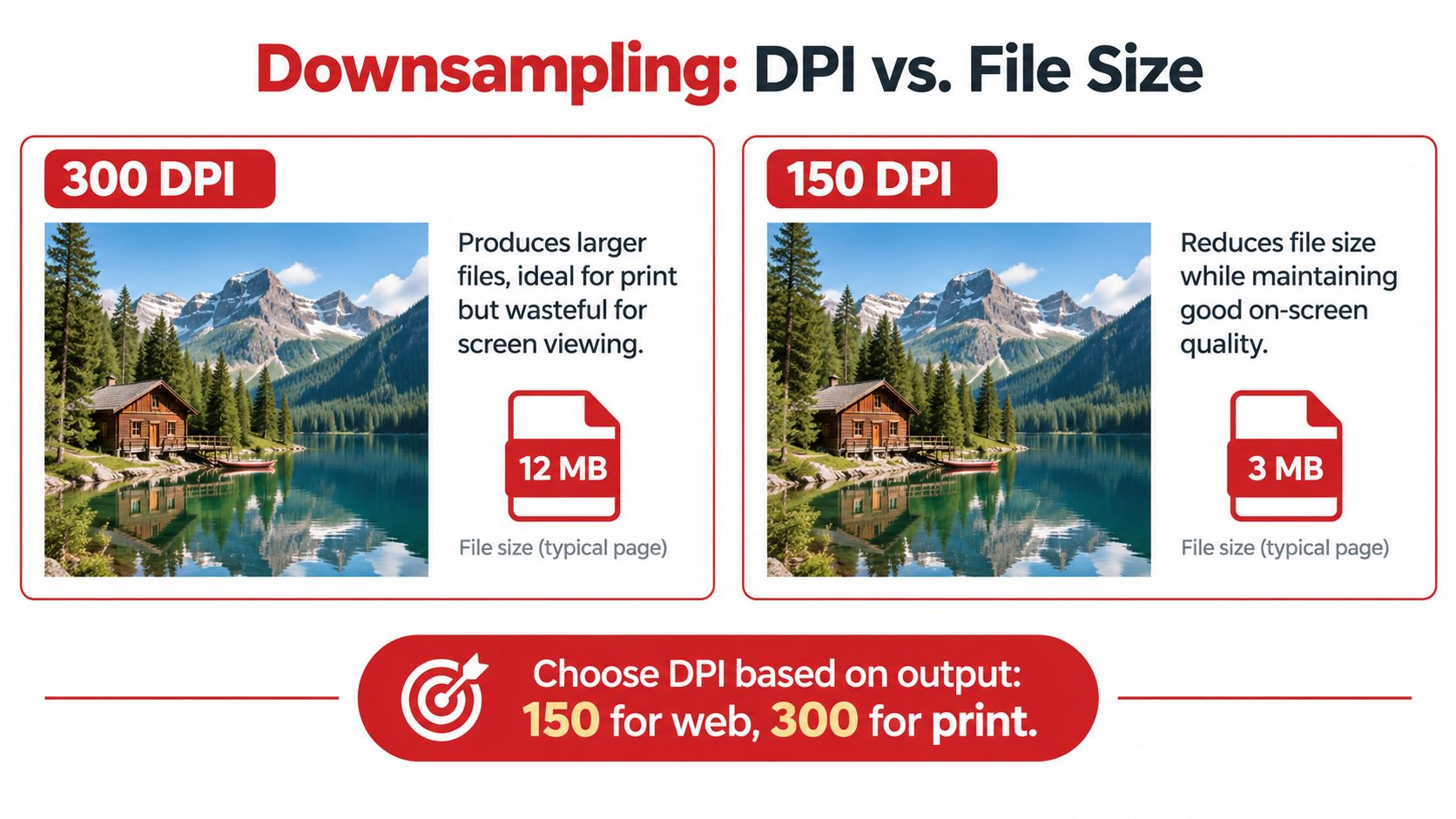
That is why downsampling matters. If your goal is a smaller PDF file, image resolution is often the first setting that produces a visible drop in size. If your goal is to make the page physically smaller on paper, downsampling will not fix it. It only reduces the pixel data stored inside the existing page dimensions.
Adobe's SDK documentation points to a detail many people miss in Acrobat and similar optimizers. Downsampling does not always run just because you picked a target DPI. It applies only when the embedded image exceeds the target enough to cross the threshold setting for color, grayscale, or monochrome images (Adobe SDK documentation for PDF creation settings). That explains why one scanned packet shrinks dramatically while another barely changes under the same preset.
DPI targets that hold up in practice
For print-oriented documents, a reliable baseline comes from IEEE's PDF preparation guidance:
- Color and grayscale images: bicubic downsampling at 300 dpi with JPEG compression at medium quality
- Monochrome images: bicubic downsampling at 600 dpi with CCITT Group 4 compression
Those settings come from IEEE image preparation guidance for PDFs. They work well for court filings, reports, exhibits, and other documents that still need to print cleanly.
For screen review, lower settings are often fine. A scanned invoice packet can usually go lower than a design proof with small labels. A software screenshot with tiny interface text often needs more resolution than a typed letter, even if both are viewed on screen. The mistake is using one DPI target for every image class.
A quick decision tree that avoids guesswork
Use this test before changing anything:
- Text looks soft only because it is part of a scan: lower DPI carefully and inspect at 100% zoom
- Screenshots contain small menus or code: stay conservative, because these degrade faster than plain text pages
- Black-and-white line art or fax-style scans: keep monochrome settings separate from color and grayscale
- Native text PDF with little image content: downsampling may do almost nothing
- Pages feel physically too large or margins are excessive: stop here and change page dimensions instead of image settings
That split matters in production. File compression and page geometry are different jobs.
How to choose without wrecking legibility
Start with the document's end use, then test a few representative pages. For a screen-only draft, lower DPI is usually acceptable if body text remains readable and signatures, stamps, and exhibit labels still hold up. For internal review copies, be more careful with screenshots and spreadsheets. For print copies, stay close to the 300 dpi and 600 dpi pattern above unless the source is already poor.
Keep an untouched master before downsampling scans. Lossy reductions are hard to reverse cleanly.
Separate treatment by image type also matters more than people expect. Monochrome scanned pleadings, grayscale records, and color marketing pages should not share the same compression recipe. If the file is bloated because it contains decorative or repeated images you do not need, removing them can beat squeezing them harder. This guide to removing pictures from a PDF is the better route in those cases.
Cropping Pages and Changing Page Dimensions
Some PDFs aren't too heavy because of compression at all. They're too big because the page geometry is wrong. Scanner borders, giant white margins, exported artboards, and slide canvases can all create a PDF that prints awkwardly or gets rejected by systems expecting standard dimensions.
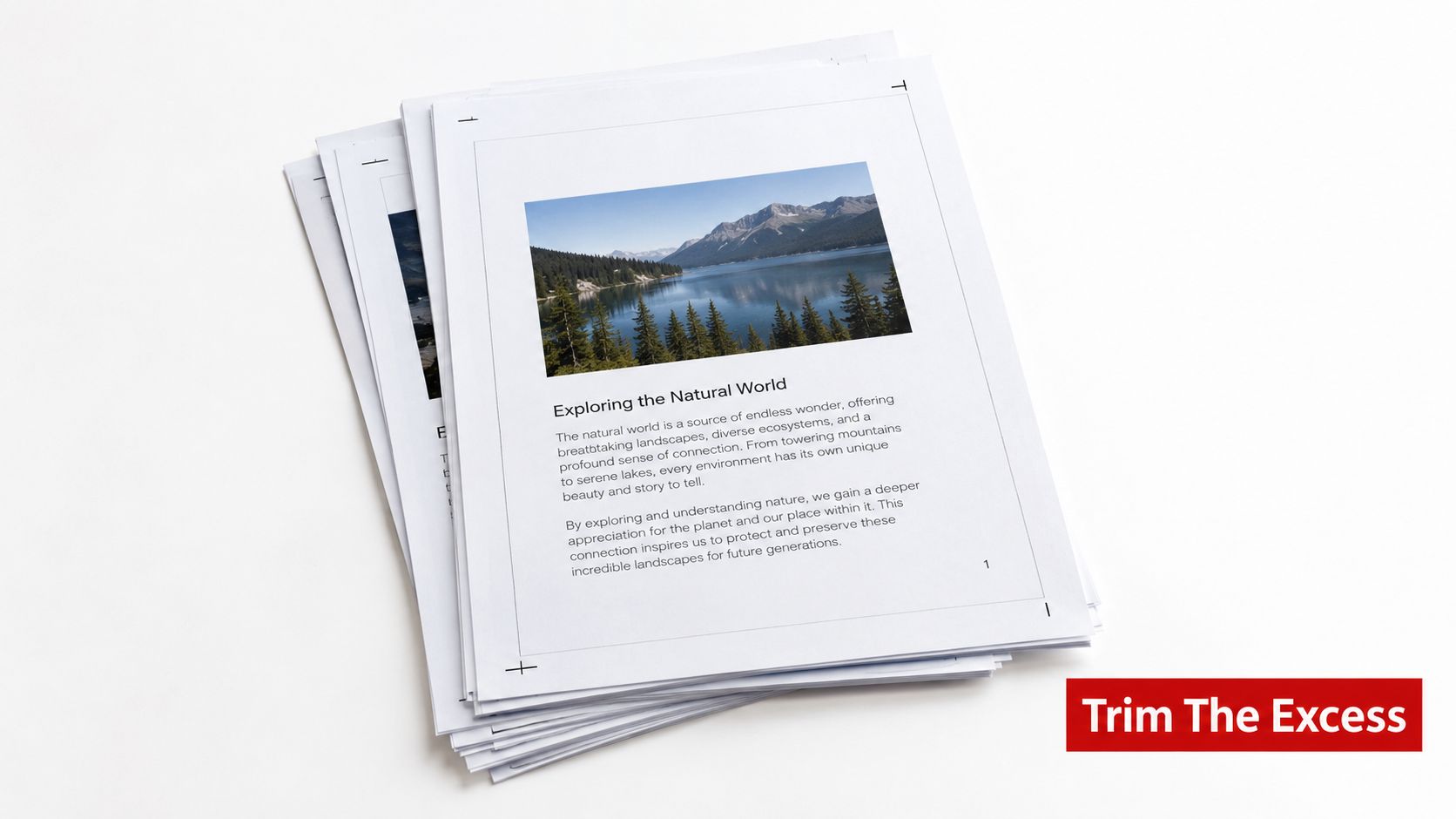
That's a different problem from file compression. Cropping changes what portion of the page is visible. Resizing changes how content fits within a new page frame.
Crop versus resize
Crop is the right move when the PDF has useless edges, scan shadows, or margins that don't need to exist. It removes visible area.
Resize is the better option when the content must remain complete but needs to fit A4, Letter, or another target. That scales the page content into a new geometry.
Adobe's print guidance separates page scaling and print fitting from file-size reduction workflows, which is exactly why “compress PDF” so often fails to solve page-format problems (Adobe guidance on scaling printed PDF pages).
When page editing is the right fix
Use page-dimension changes when you're dealing with:
- Oversized slide exports that carry presentation canvas dimensions into the PDF
- Scans with thick borders that waste space and make pages look off-center
- Mixed paper standards where Letter, Legal, and A4 need normalization
- Print workflows that require consistent trim and visible content alignment
The practical workflow is simple. Select individual pages or a page range, enter the target width and height in inches or millimeters, preview the result, and export only when you know content isn't being clipped. If the content itself is still heavy after that, then run compression second.
Alternative Tools and When to Use Each One
The right tool depends less on features and more on context. One-off browser jobs, sensitive legal files, local Mac workflows, and server-side batch automation all call for different choices. Treat tool selection as a routing decision, not a popularity contest.
Tool comparison by use case
| Tool | Platform | Batch Support | Privacy Model | Best For |
|---|---|---|---|---|
| PDFWix | Browser | Limited by workflow | Most tools run in-browser; Protect and Unlock run in server memory only | Quick compression, page edits, no-install tasks |
| Adobe Acrobat Pro | Desktop | Yes | Local/offline workflow available | Legal, print, preflight, object-level control |
| macOS Preview | macOS | Minimal | Local device | Casual one-off compression |
| Ghostscript | Command line | Yes | Local or server-controlled | Automation, CI pipelines, scripted jobs |
For browser-based work, PDFWix's PDF compression comparison guide is useful if you want to compare common tool styles before picking one. The practical advantage of browser tooling is speed. Open, process, download, move on.
Match the tool to the document
Acrobat Pro is the safer choice when the file is headed to court, production print, or a compliance-sensitive archive. It gives you object-level optimizer controls, print-oriented handling, and more predictable preflight behavior.
Preview is fine for a quick local save on a Mac. It's not the right choice when you need fine control over image classes, OCR preservation, or repeatable output.
Ghostscript is for teams that batch jobs. If you're processing folders on a server or inside an automated pipeline, command-line control matters more than interface polish.
If you care about repeatability across many files, automation beats hand-tuning every PDF.
A quick shortcut
Choose by environment:
- One file, browser is fine: use a browser tool.
- Offline legal or print workflow: use Acrobat Pro.
- Mac and casual local need: Preview is enough.
- Server jobs or lots of files: Ghostscript makes more sense.
Troubleshooting When the File Stays the Same or Grows
Compression doesn't always help. Sometimes it barely changes the file. Sometimes it makes the file bigger. That surprises people the first time, but it's normal behavior in PDF work.
Fast fixes for the three common failure modes
| Symptom | Likely cause | Practical fix |
|---|---|---|
| Output file is larger | The source was already optimized, and recompression added overhead | Try a lighter preset or stop recompressing and use cleanup, crop, split, or re-export instead |
| Text looks fuzzy | Downsampling was too aggressive for scanned text or screenshots | Re-run with a higher DPI target and inspect small text before saving |
| Scan still feels heavy | OCR layers, embedded images, or page clutter still dominate | Check image resolution, remove unnecessary pages, crop margins, or split the file |
What to check next
If the PDF grows after compression, don't keep hammering it with stronger presets. Independent benchmarking already showed that many compression runs enlarge files rather than shrink them, especially when the source is pre-compressed or structurally efficient. In those cases, use a different move.
Recent practical guidance points to the fallback actions that help when compression stalls: split long PDFs, crop large white margins, remove pages, or re-export scans differently. The same guidance also notes that file weight often comes from scans, transparency, embedded fonts, metadata, and page clutter rather than “PDF size” in the abstract, and Adobe's optimizer documentation specifically calls out transparency flattening as a space-saving step (practical fallback actions when compression isn't enough).
Quick checks worth doing
- Look for OCR layers: They're useful, but they can add overhead to scan bundles.
- Remove thumbnails and scripts: Hidden extras sometimes survive repeated edits.
- Inspect form fields: Old interactive fields can remain inside documents that now behave like static PDFs.
- Check transparency-heavy exports: Re-exporting from the source app can work better than post-compression.
- Try splitting the file: If a portal accepts sections, don't fight one giant document.
When a file barely shrinks, the useful question isn't “Which compressor is strongest?” It's “What exactly is taking up the space?”
Decision tree for reduce page size PDF
Start here:
- Wrong page dimensions? Crop or resize pages first.
- File too big to send? Use compression.
- Mostly text and vector content? Focus on fonts, metadata, and cleanup.
- Mostly images or scans? Focus on DPI downsampling and image compression.
- Still too large after that? Split the PDF, crop margins, remove pages, or re-export for the actual end use.
- Need archival output or repeatable workflows? Consider PDF/A conversion or server-side batch processing.
If you need to reduce page size in a PDF without guessing, PDFWix gives you browser-based tools for both sides of the problem: compressing file weight and editing page dimensions. It's a practical fit when you need to shrink a document, crop oversized pages, or handle routine PDF cleanup without installing desktop software.